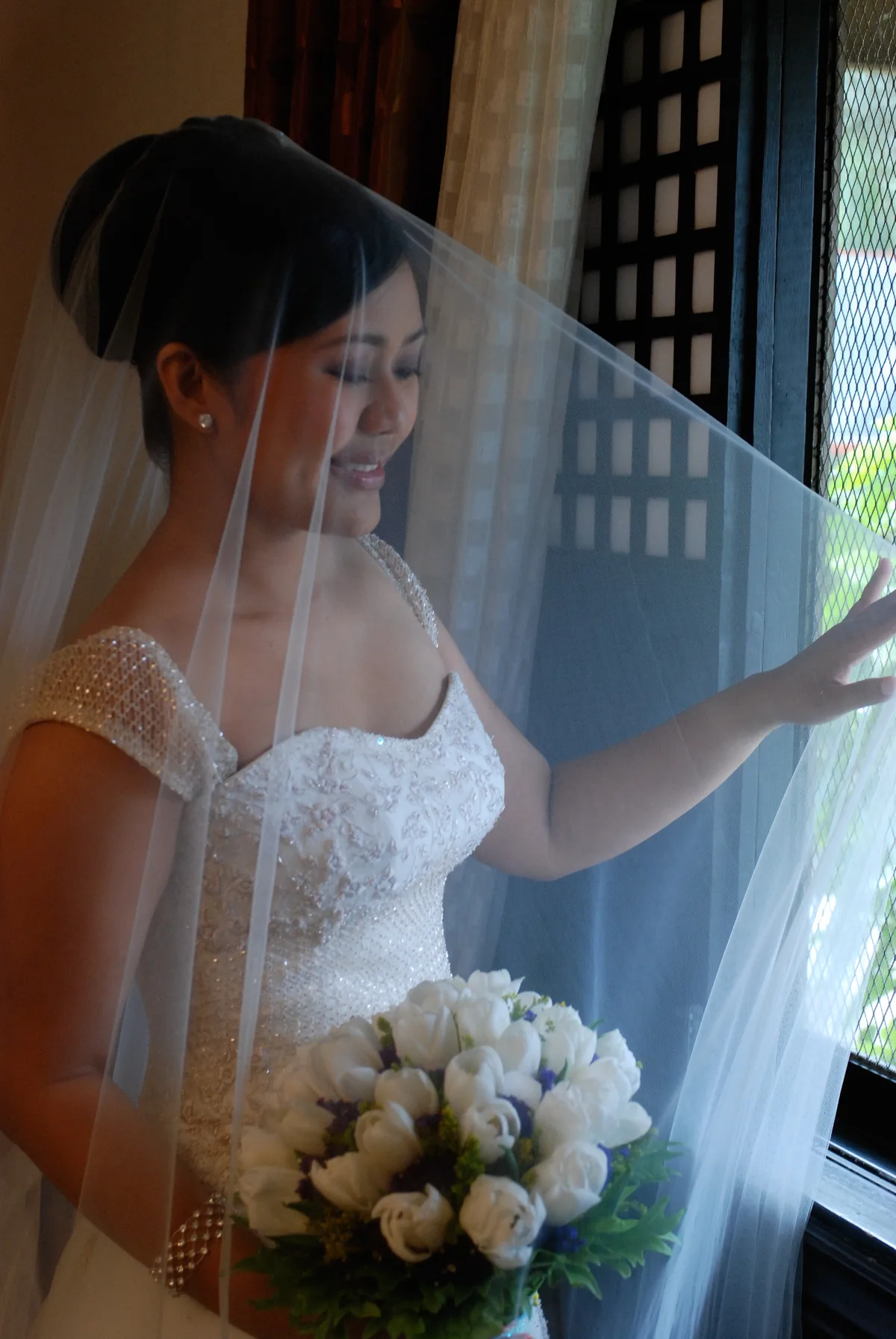
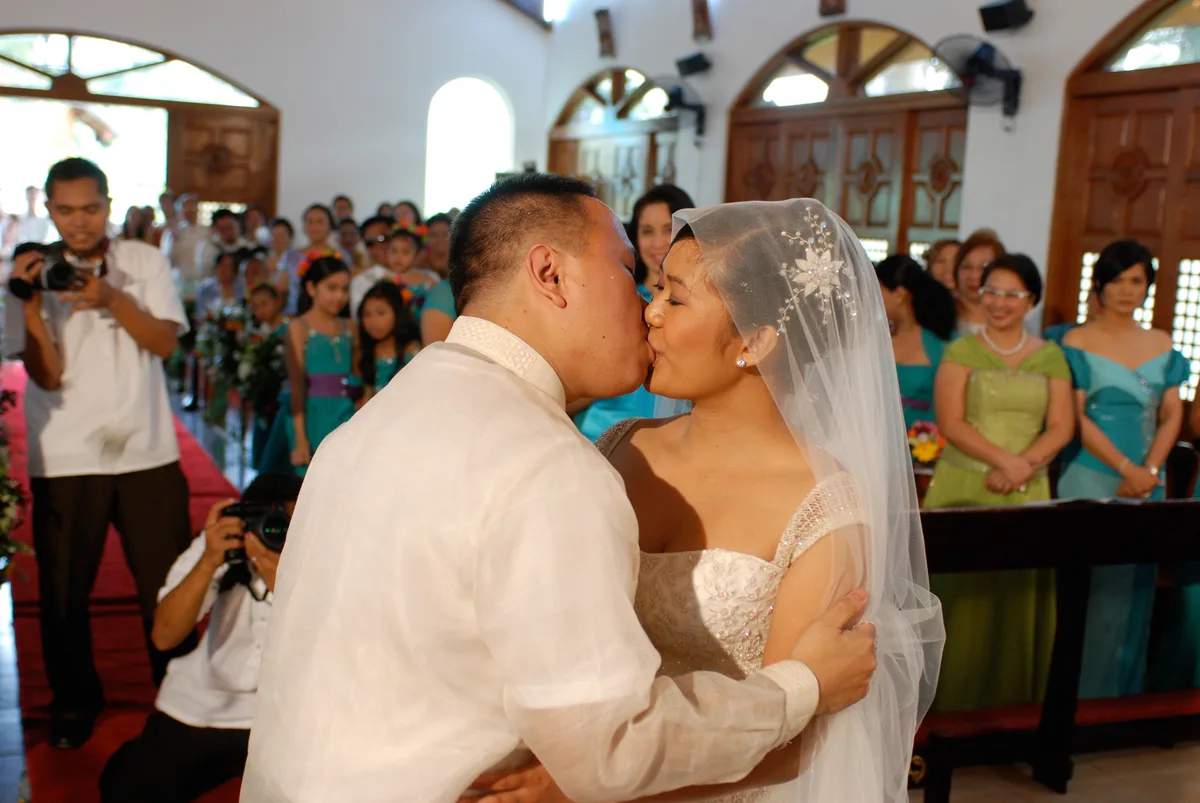
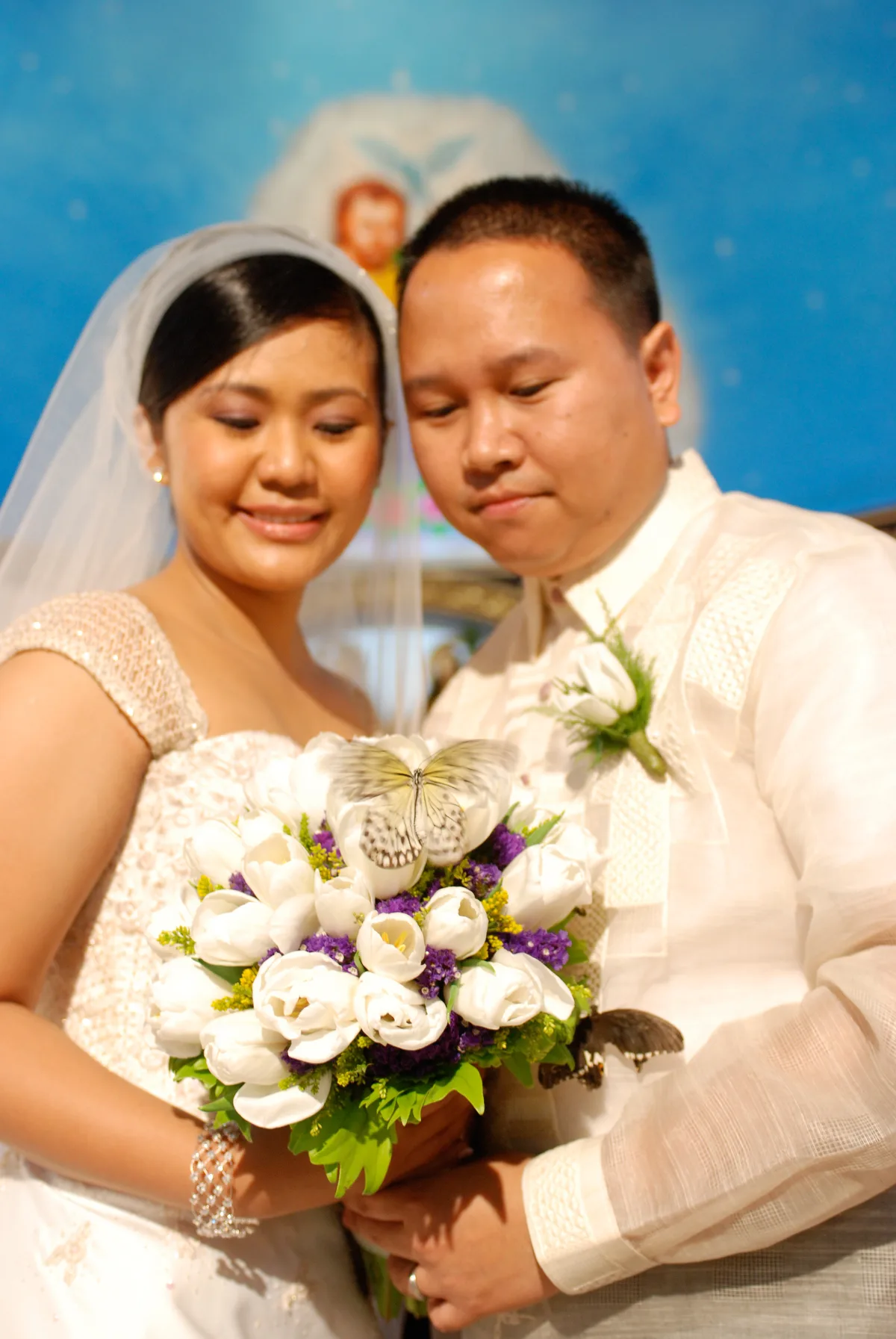
After weeks of arranging and uploading, I’ve finally finished all the pictures taken by our photographer during our wedding last month. Ariel Javelosa was the company who shot our prenup pics and the wedding pics. I was impressed by their professionalism and punctuality. Unfortunately, out of the 4 cameras used at least one had the date/time-stamp mis-configured. This made it hard to arrange the pictures in chronological order. I tried my best to remember the order of events. Here’s what I did using my Mac.
- Import all of the pictures off the CDs and create an album in iPhoto.
- Select View => Sort Photos => Manually. You can now drag the photos around and arrange them the way you want.
- Select all the photos (Apple + A). Select Photos => Batch Change.
- Set = Date. Then put the date and time you want the first photo to have. Then I added 10 seconds between each photo so that the order stays the same. Each photo’s time will be different by 10 seconds. I checked the Modify original files and clicked OK.
- If the title isn’t displaying, you can display it by selecting View => Titles.
- Select all the photos (Apple + A). Select Photos => Batch Change.
- Set = Title, to = Date/Time. Select Include Date: and select Short. Select Include Time, 12-hour clock, and select Show Seconds. Click OK.
- Make sure everything is still in order. Select View => Sort Photos => By Date. Make sure Ascending is checked.
- Create a folder on you Desktop.
- Select all of the photos in iPhoto then export. Select File => Export. Select the File Export tab. Select Current under Kind. Select Use title under File Name. Then click on Export.
- Navigate to the folder you made on your Desktop.
- Once finished open the folder and you will notice that the file names are now the date/time-stamp you changed it to using iPhoto and the order stayed the same (assuming that folder orders the files by filename).
That’s all in iPhoto. You can now use Automator to rename the files to whatever you want. It only takes 2 Actions in Automator.
- Get Specified Finder Items. This is where you drag the files over.
- Rename Finder Items. The first drop down select Make Sequential. Then new name: DSC_. Place number after name. Start number at 0001. Separated by nothing. Check the Make all numbers with the value of 4.
- Run it and you’re done. The files should be renamed something like DSC_0001.jpg and it’s incremented by 1 for every file. You can name it whatever you want. I then uploaded it onto my Phanfare account and 2 weeks later I’m done. Keep in mind that the Exif data wasn’t changed just the image property. Hope this helps anyone out there. It was an adventure trying to solve this problem – which could have been avoided if the camera date/time-stamp setting was configured properly.
You can see our pics at http://abbyandwin.phanfare.com. There’s 5 albums since I’m only able to have 500 pics each album.
Update: Phanfare has notified me that I can have more than 500 pictures in an album but am limited to 500 pictures in a section within an album. They were kind enough to email me a link on how to rearrange it. So now I have just 1 album broken down into 5 sections. Thanks Phanfare! :)
Update 2: We no longer have Phanfare. Our photo albums are on Facebook and is limited to family/friend views only. We haven’t found a replacement to Phanfare yet and may stick with Facebook since it does what we need it to do.




 Yup, I wore the Air Jordan VIII “Aqua” on my wedding #sneakerhead



Show 30 comments
Comments
These comments were left on the original blog post. Comments are now closed — see About for how to get in touch.
↑ Back to top